GPU sharing with your game renderer
Hardware-level GPU scheduling lets AI inference share the GPU with your game. Zero frame drops, no separate GPU needed.
The Problem
Games use 90–100% of the GPU for rendering. Every existing AI inference tool (Ollama, llama.cpp, vLLM) assumes exclusive GPU access. Running AI alongside a game causes OS-level GPU context switching, which means frame drops: 45–55 FPS instead of 60.
Developers are forced to choose: cloud (latency), CPU (slow), or frame drops (unacceptable).
How the Compute Graphics Scheduler Works
The Atelico Compute Graphics Scheduler (CGS) schedules inference and rendering on a single shared hardware context instead of letting the OS context-switch between them. The result: AI inference runs alongside your game with minimal frame-time impact.
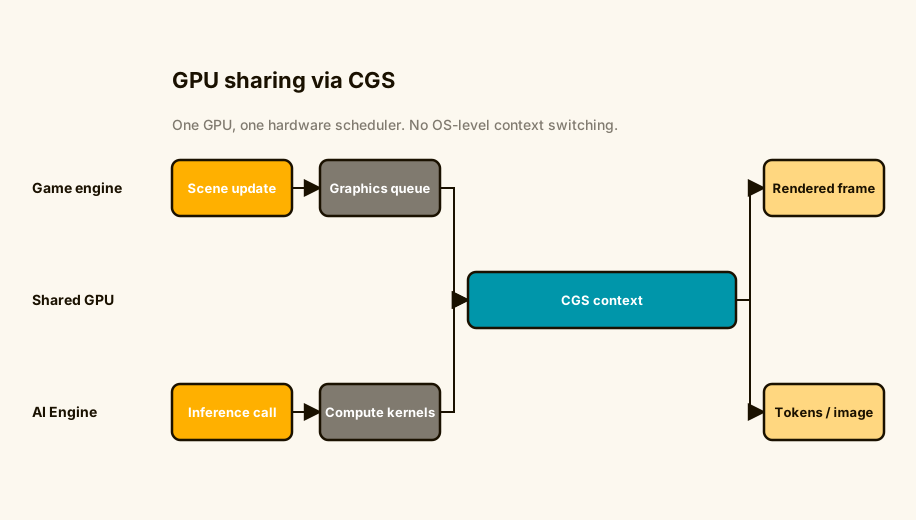
Measured on a Windows 11 + RTX 5080 host running the engine's D3D12 CGS demo with Llama 3.2 3B (Q4_K_M) generating tokens during render. The heavy scene is San Miguel (~10M triangles) at 4K, tuned to ~123 FPS without inference.
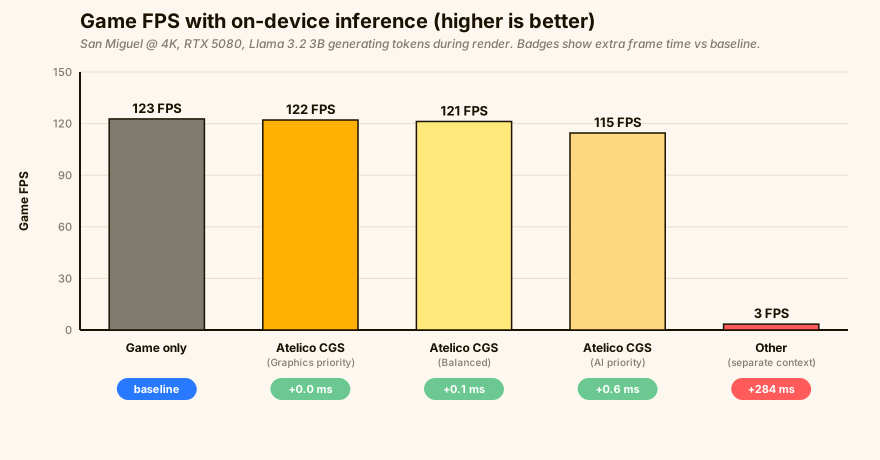
Without CGS, every CUDA submission forces the WDDM driver to context-switch away from the D3D12 graphics queue and back, collapsing the render loop from 123 FPS to 3 FPS. With CGS enabled, the inference kernels share the renderer's hardware scheduling context: the frame-time cost stays under 0.1 ms in the graphics-priority and balanced modes, and under 0.6 ms even in PrioritizeCompute, the mode that deliberately favors AI throughput. No other inference tool shares the GPU with a game renderer like this.
Three Scheduling Modes
- PrioritizeGraphics: Game gets priority, AI gets leftover cycles. Best for GPU-intensive scenes.
- Balance: Even split between game and AI. Best for most gameplay scenarios.
- PrioritizeCompute: Maximum AI throughput, game gets remaining GPU time. Best for loading screens or menus.
Supported Hardware
CGS is implemented for every hardware backend the engine supports. Each platform uses the best available scheduling mechanism for that hardware:
- NVIDIA RTX 40xx/50xx: Full hardware-level scheduling with minimal frame-time impact
- Older NVIDIA GPUs: Software-level scheduling fallback
- Apple Silicon: Native GPU coexistence on macOS and iOS
- CPU: No GPU contention, inference runs on separate threads
Integration
Set the scheduling mode with a single call. The engine detects the hardware and selects the best scheduling backend automatically.
// Set GPU scheduling priority
Atelico.SetGpuPriority(GpuPriority.Balance);

// AI inference now shares the GPU with your renderer
string response = await Atelico.Chat(
    "What should I do next?",
    "You are a helpful NPC."
);